Comprehensive Guide: Enable VoLTE/VoWiFi on Pixel (Post-Patch 2025)
Comprehensive Guide: Enable VoLTE/VoWiFi on Pixel (Post-Patch 2025)
Author: Pixel & Shizuku Expert
Last Updated: January 2026
Context: Post-October 2025 Security Patch (CVE-2025-48617)
⚠️ Important Context
Google recently patched the loophole used by the original "Pixel IMS" app to enable VoLTE/VoWiFi in unsupported regions. If your Pixel IMS app started crashing or showing "overrideConfig cannot be invoked by shell" after the October 2025 update, this guide is for you.
We will use a new method that leverages Shizuku to inject carrier configurations. Unlike the old method, this relies on the Shizuku service running to apply patches dynamically.
📋 Prerequisites
- Google Pixel Device (Pixel 6/7/8/9/10 series running Android 14/15/16+).
- Wi-Fi Connection (Required for Wireless Debugging setup).
- Shizuku App (Available on Play Store or GitHub).
- Patched IMS App (Developed by vvb2060 or kyujin-cho - check GitHub for pixel-volte-patch releases).
Part 1: Setting Up Shizuku
You must get Shizuku running first. This tool acts as a bridge, allowing the IMS patch to access system-level APIs without rooting your phone.
Option A: Non-Rooted Devices (Wireless Debugging)
Best for most users. Requires Android 11+.
1. Enable Developer Options:
- Go to Settings > About Phone.
- Tap Build Number 7 times until you see "You are now a developer."
2. Install Shizuku:
- Standard Method: Download Shizuku from the Google Play Store.
- Android 16 Users / Version Issues: The Google Play Store version sometimes lags behind the latest Android releases. If you are on Android 16 and see an error saying "Shizuku only supports older versions of Android," you must download the latest version directly from GitHub.
* **Direct Link (v13.6.0+):** [Download [Shizuku APK from GitHub](https://github.com/RikkaApps/Shizuku/releases/download/v13.6.0/shizuku-v13.6.0.r1086.2650830c-release.apk)
3. Prepare Wireless Debugging:
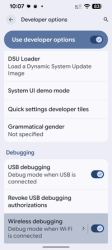
- Open Settings > System > Developer Options.
- Enable Wireless Debugging (Ensure you are connected to Wi-Fi).
- Note: If asked to "Allow wireless debugging on this network?", check "Always allow" and tap Allow.
- Pair Shizuku:
- Open the Shizuku app.
- Tap Pairing (under the "Start via Wireless Debugging" section).
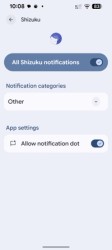
- Tap Notification Options and ensure all Shizuku notifications are enabled.
- Tap Developer Options within Shizuku (or switch back to system settings).
- Inside the Wireless Debugging menu, tap Pair device with pairing code.
- Memorize the 6-digit Wi-Fi pairing code shown.
- Pull down your notification shade. You will see a "Pairing service found" notification from Shizuku. Enter the code there and send.
- You should see a "Pairing successful" message.
- Start the Service:
- Return to the Shizuku app main screen.
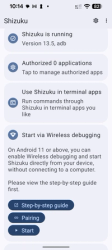
- Tap Start (under "Start via Wireless Debugging").
- After a few seconds, it should say "Shizuku is running" at the top.
Option B: Rooted Devices
Only for users with Magisk/KernelSU.
- Open Shizuku.
- Tap Start (under the "Start (for rooted devices)" section).
- Grant the Superuser/Root request when prompted.
- Shizuku is now running.
Part 2: Installing the VoLTE Patch
Now that Shizuku is running, we will install the specific IMS patcher.
- Download the App:
- Download the latest ims.apk or pixel-volte-patch from the developer's GitHub.
- Direct Link (v3.0): Download IMS APK (v3.0)
- Authorize in Shizuku:
- Open the Shizuku app.
- Go to the "Authorized Applications" section (it might be 0 currently).
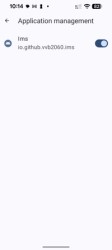
- Find the IMS app (e.g., io.github.vvb2060.ims) in the list.
- Toggle the switch to Grant access.
Part 3: The "Stop & Restart" Trick (Crucial Step)
Unlike the old method, this new patch applies configurations when the Shizuku service starts. Because Shizuku was already running before you authorized the IMS app, the patch hasn't applied yet.
- Open the Shizuku app.
- Tap the 3-dot menu (overflow icon) at the top right corner.
- Select Stop Shizuku.
- Wait a moment, then tap Start again (via Wireless Debugging or Root).
- What happens now: As Shizuku starts up, the authorized IMS patcher detects the startup and immediately injects the carrier configs:
- Enables VoLTE & VoWiFi
- Enables SA/NSA 5G
- Enables Video Calling & Standby Calling
Part 4: Verification & Configuration
- Go to Settings > Network & internet > SIMs.
- Select your SIM card.
- You should now see the VoLTE (or "4G Calling") and Wi-Fi Calling toggles.
- Toggle them ON.
Note: You likely won't need to open the IMS app itself. The work is done automatically by the background hook into Shizuku.
Part 5: Cleanup & Security (Optional)
Once the VoLTE/VoWiFi toggles are active and working, you do not need to keep the wireless debugging port open or the Shizuku app active on your screen. The configuration has been injected for this session.
- Disable Wireless Debugging (Important):
- Go to Settings > System > Developer Options.
- Toggle Wireless Debugging to OFF.
- Why? Leaving this on consumes battery and can be a security risk on public networks.
- Close Shizuku:
- You can swipe the Shizuku app away from your recent apps.
- Note: Do not press "Stop Shizuku" inside the app unless you are troubleshooting. Just closing the app window is fine. The carrier config (VoLTE) usually persists until you reboot the phone.
- After a Reboot:
- Remember that if you restart your phone, the patch will be lost. You will need to re-enable Wireless Debugging and tap "Start" in Shizuku again to re-apply the patch.
Troubleshooting & Persistence
"The options disappeared after I rebooted!"
- Cause: On non-rooted devices, Shizuku stops running when the phone restarts. Consequently, the VoLTE patch stops working.
- Fix:
- Connect to Wi-Fi.
- Open Shizuku.
- Tap Start (via Wireless Debugging).
- The patch will automatically re-apply instantly. You do not need to reinstall the app or re-pair.
"I can't start Shizuku / Searching for Wireless Debugging"
- Fix: Go to Developer Options, toggle Wireless Debugging OFF and then ON again. Return to Shizuku and tap Start.
"VoWiFi works at home but fails abroad"
- Context: Some users report VoWiFi fails when roaming (e.g., moving from a home carrier to a roaming partner like Orange FR).
- Reason: This is often due to IMSI switching logic in the SIM card which breaks the forced configuration.
- Workaround: There is no permanent fix for multi-IMSI SIMs yet, but restarting the Shizuku service after establishing the roaming connection may help force the config again.
"Is this safe?"
- This method does not modify the /system partition. It runs in user-space memory. However, you are overriding carrier configurations, which technically violates carrier policies. Use at your own risk.